Create an assignment report
Your firm must connect Kaiya to Invenias. You also need Reports access and at least one of your firm's report templates.
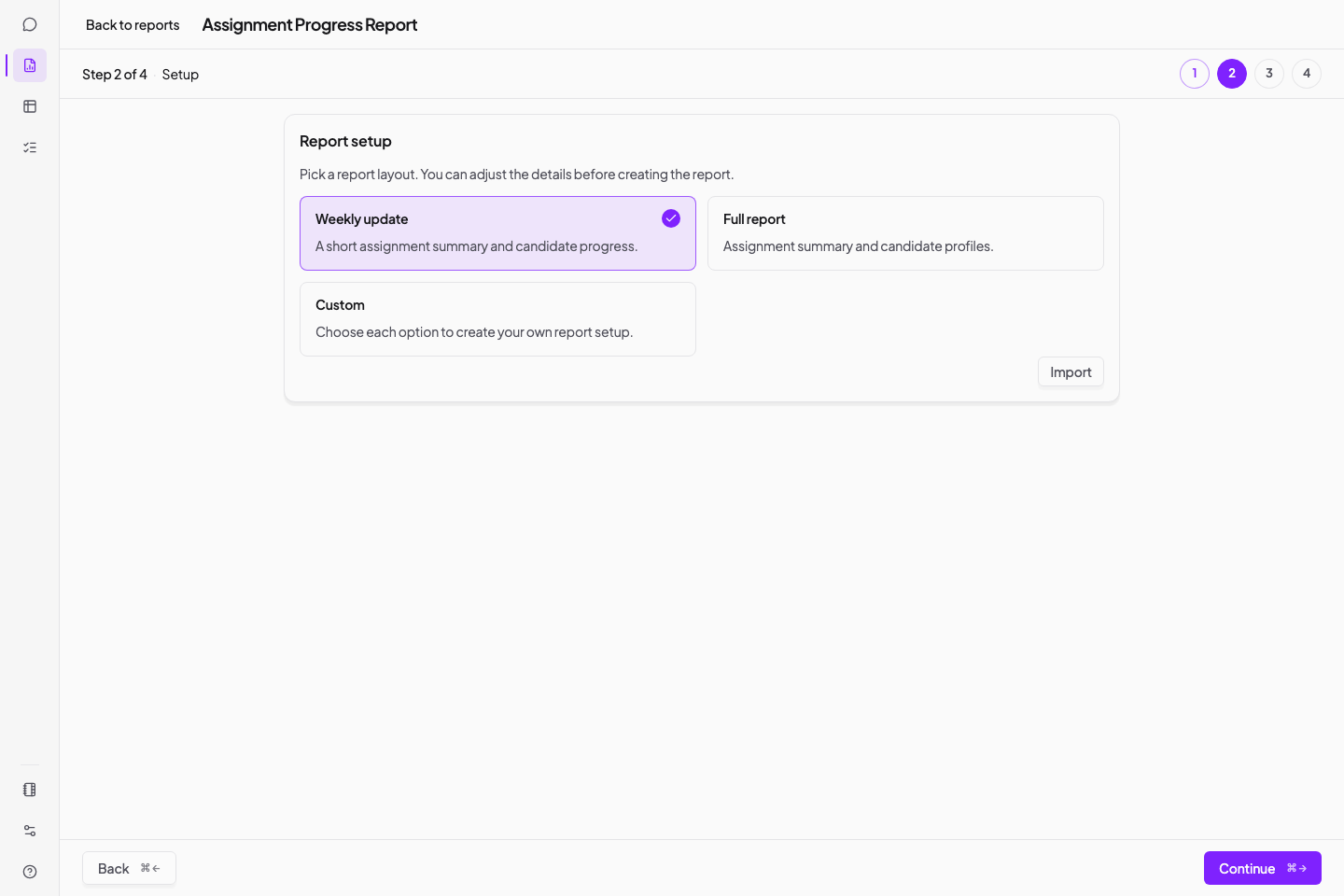
Kaiya creates a branded Microsoft Word report from an Invenias assignment. Choose one of your firm's templates and a standard report setup. You can change the options, save a new setup and share it with colleagues.
Open Reports from the navigation on desktop or from the app menu on mobile.
If you cannot see Reports, contact the Kaiya team at hello@kaiya.ai. If Reports opens without templates, use the same address.
If your firm does not use Invenias, ask Kaiya to create a Word report from the assignment material you provide.
Create a report
- Open Reports from Kaiya's navigation.
- Find the report template you need.
- Select Create.
- Search for the Invenias assignment.
- Select the assignment.
- Choose a standard report setup, or Custom to set each option.
- Select Continue.
- Change the candidate groups, sections or other options as needed.
- Review Report to be created.
- Select Create report.
- When Kaiya finishes the report, select Download.
Each template includes several standard setups. The options can include candidate groups, profile detail and report sections.
Check the source information
Check the assignment, shortlist, candidate status and client decisions in Invenias before you create the report.
If a source record is wrong, update Invenias. Create the report again after the update finishes. An edit in Word changes that document alone.
Review before sharing
Open the downloaded Word document and check:
- Assignment, client and candidate names.
- Dates, statuses and figures.
- Candidate selection and order.
- Empty sections or missing evidence.
- Internal notes that the client should not receive.
- Page layout, images and branding.
You can edit the Word document after download. These edits do not update Invenias. Update the source record when the correction should appear in later reports.
Save a report setup
You can save any set of report options for later use.
- Change the report options you need.
- Select Save report setup on the final step.
- Enter a clear name.
- Add a description if you need one.
- Select Save.
Kaiya lists the new option under Your saved setups. If you change a saved setup, select Save changes to update it. Select Save as new to keep both versions.
Share a setup with a colleague
Download a setup file to share your report options.
- Find the setup under Your saved setups.
- Open its More options menu.
- Select Download.
- Send the
.kaiyafile to your colleague.
Your colleague imports it from the same report template:
- Start a report with the same template.
- Select Import in Report Setup.
- Choose the setup file.
- If Kaiya shows that the name already exists, enter a different name.
- Select Import.
A setup file works only with its original template. If Kaiya rejects the file, open the matching template. Import the setup there.
Create another version
- Open Reports.
- Select Create on the same template.
- Choose a saved or standard setup.
- Change the options you need.
- Create the report.